
Recover Deleted Files on Windows.
Without Touching the Source.
Accidentally deleted critical data? RecoverPro finds deleted and lost files on NTFS, FAT, and exFAT drives. Featuring deep raw-sector carving, a real-time disk map, and a strict 100% read-only architecture to protect your original media from accidental overwrite.
•
✓ Hardware Write-Block / Read-Only
•
✓ English & Italiano
How to Recover Lost Files Safely: The Zero-Overwrite Rule
When you delete a file on Windows, the operating system does not immediately wipe the bytes from the drive. Instead, it marks the clusters as available space in the Master File Table (MFT) or File Allocation Table (FAT). Any write operation—even from poorly designed recovery software—can permanently overwrite that lost file.
RecoverPro enforces a strict read-only lock. By accessing storage volumes with strictly enforced read permissions, RecoverPro inspects raw disk sectors, maps deleted signatures, and retrieves lost photos, videos, and documents without altering a single bit on your target drive.
RecoverPro listing physical drives, file systems (NTFS, FAT, exFAT) and automated SSD TRIM warnings before scan begins.
How to Recover Deleted Files in 3 Simple Steps
Fast recovery workflow designed for technical users, IT administrators, and everyday users alike.
Pick the Drive
Select the physical disk or partition where files were lost. RecoverPro opens it exclusively in read-only mode and checks for SSD TRIM risks before proceeding.
Run Scan
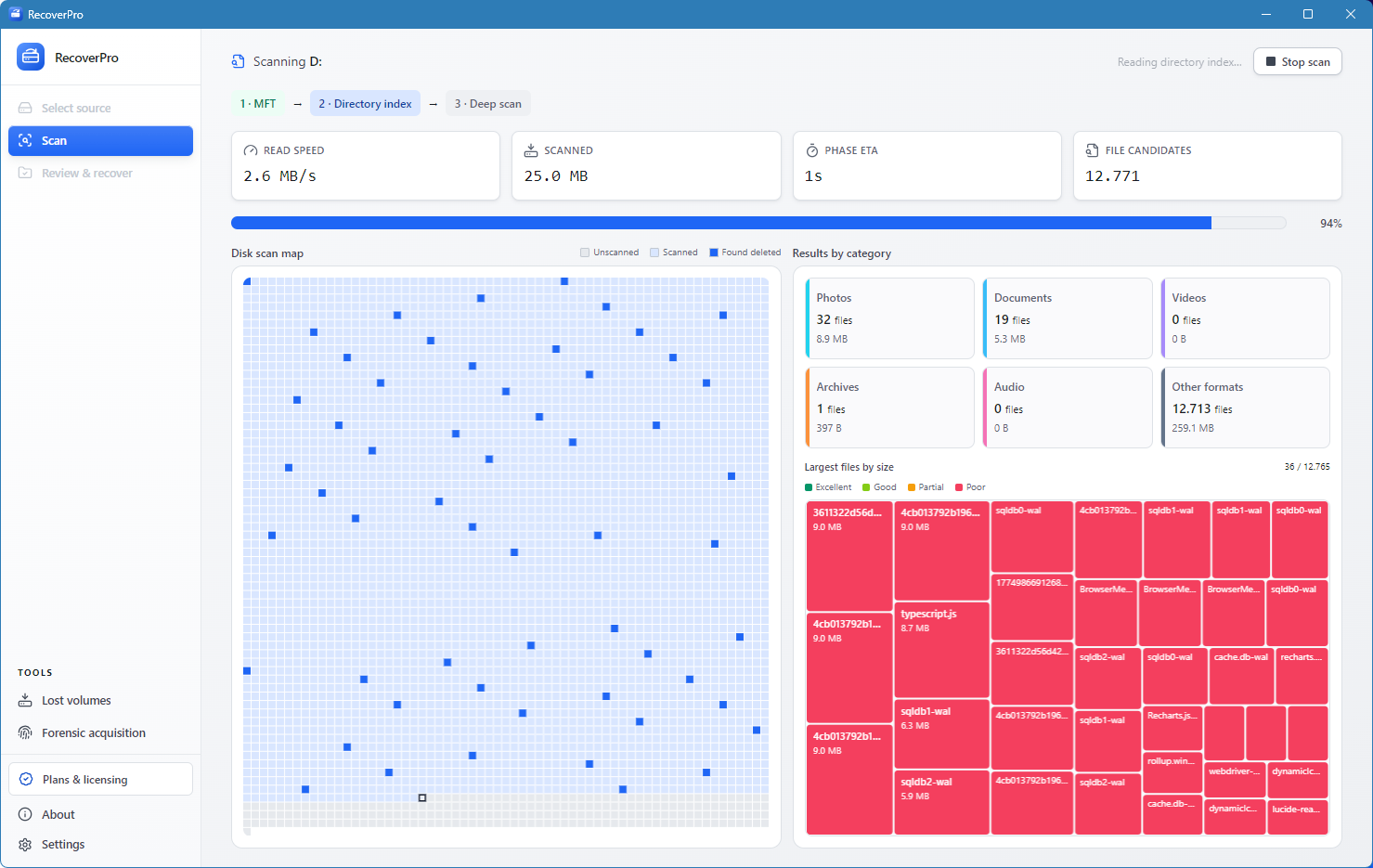
Run a fast pass to analyze directory indexes and the NTFS MFT. Switch to Deep Scan for signature-based carving when the partition index is damaged or formatted.
Review & Save
Inspect each candidate’s integrity rating (Excellent, Good, Partial, Poor). Filter by file category and securely save to a separate, external destination.
Advanced Data Recovery & Forensics Features
Engineered from the ground up for maximum data integrity and deep recovery capability.
Live Disk Map & Fast Pass
The high-speed pass reads the NTFS Master File Table and FAT directory tables in seconds. An interactive live disk map illustrates unscanned, scanned, and found deleted clusters in real time with the ability to pause or stop at any moment.
Deep Raw File Carving
When file tables are corrupted, formatted, or lost, Deep Scan reads raw volume sectors. It isolates exact file headers and trailers for 20+ major file signatures including photos (RAW, HEIC), PDFs, Microsoft Office documents, archives, and media.
Forensic Bit-for-Bit Imaging
For evidentiary investigations or dying hardware, generate bit-exact disk images with comprehensive audit logs, cryptographic hashing, case numbers, and legal authority checkboxes—guaranteeing unbroken chain of custody.
Universal File Signature Coverage
RecoverPro reconstructs intact and damaged files through specialized parsing routines:
CR2 RAW / HEIC / TIFF
PDF Documents
Office OOXML (DOCX, XLSX)
ZIP / RAR / 7z / CAB
SQLite Databases
MP4 / MKV / MOV / AVI
MP3 / WAV / FLAC
Lost a File? The 3 Critical Rules to Follow Immediately
⚠️ Stop all writes immediately to avoid permanent file corruption
- Stop using the drive: Do not install apps, browse the web, or save new documents to the affected volume. Any new file allocation can overwrite freed blocks.
- Scan only with read-only tools: Ensure the recovery software doesn’t create temporary cache files on the target drive. RecoverPro uses verified read-only access.
- Always restore to a different disk: Never output recovered files back into the original partition until recovery is completely finished and verified.
Why RecoverPro is the Safest Choice for Windows
- Read-Only by Architecture: Storage volumes are addressed in read mode only, preventing inadvertent modification of deleted clusters.
- Pre-Flight SSD TRIM & OS Alerts: Clear warning flags for SSDs with TRIM enabled and active system partitions where files may have been purged by background garbage collection.
- Provisional Candidate Ratings: Each discovered entry is rated (Excellent, Good, Partial, Poor) based on sector continuity, eliminating false recovery promises.
- No Bloatware, Minimal Footprint: Native C++/Windows performance with strictly required administrator privilege requests—nothing running silently in the background.
Frequently Asked Questions (FAQ)
Direct answers about lost file recovery, file systems, and hardware limitations.
How do I recover lost files from a formatted drive?
When a drive undergoes a Quick Format, the file system table is regenerated but sector contents remain intact. Launch RecoverPro, select the volume, and execute a Deep Scan. RecoverPro’s signature carving identifies file headers directly from raw storage blocks.
Can I recover files from an SSD with TRIM enabled?
Once an SSD executes a TRIM command, the internal flash controller marks the deleted sectors as zeroed, making retrieval virtually impossible. RecoverPro proactively displays an SSD TRIM warning before scanning so you don’t waste hours scanning purged SSD blocks.
Does file recovery overwrite existing data on my drive?
Never with RecoverPro. The disk is opened exclusively in read-only mode via Windows API calls. Write operations are blocked at the code level, and recovered files can only be saved to a different destination volume.
Which file systems are supported by RecoverPro?
RecoverPro supports all primary Windows and external storage formats, including NTFS, FAT16, FAT32, and exFAT, covering internal hard drives, external USB HDDs/SSDs, and SD memory cards.
RecoverPro is developed by Vincenzo Chieppa for MZGuard — Enterprise endpoint security for Windows.
Open-source core available at github.com/mzguardit